A customer forwards you an email. It looks like it came from you: your logo, your name, your email address, the same invoice layout you always send. Except this one says: “We’ve changed our bank. Please send payment to this new account.”
You didn’t send it. The bank account isn’t yours. But your customer almost paid it, and the next one might not check first.
Nobody broke into your software or your database. Your domain name (the example.com part) is public. Anyone can put it in the “From” field of an email and make it look real. Authentication records give receivers like Gmail and Outlook a way to catch that mismatch and act on it.
If you’ve never heard of SPF, DKIM, or DMARC: those are exactly the controls that narrow this kind of exact-domain spoofing. They don’t stop lookalike domains (examp1e.com), display-name tricks, compromised accounts, or every other kind of fraud, so don’t assume they explain this incident until you’ve actually looked at the message and your DNS. First, reduce the immediate risk. Then close the gap.
First: do these three things right now (before touching any DNS)
1. Tell your customers out loud. Send an email from an address you know works that says: “We will never email you a new bank account number. If you ever get an email asking you to pay a different account, call us first.” Do this today. It takes 10 minutes and it’s the single most effective thing you can do. Scammers rely on the fact that customers assume an email from your domain is really you.
2. Check whether you already lost money. Ask your customers directly: “Did you receive any invoice recently asking you to pay a new bank account? Did you pay it?” If someone did, that’s a police matter and a bank-fraud-report matter. The window to reverse a transfer is short, so the sooner you report it, the better.
3. Find out how many people got it. Did one customer forward it, or did several mention it? One targeted customer is a spear-phishing attempt. A blast to your whole customer list means someone scraped your addresses. Either way, the fix below is the same, but the scale changes how loudly you communicate.
None of those three steps require any technical knowledge. Do them first; the DNS work below stops the next attempt, not the one that already went out.
Why this was possible (in one paragraph, no jargon)
Email has a weakness older than the internet: the “From” address is just text the sender typed in. Nothing in the basic email system checks whether the sender is allowed to use your domain. It’s like anyone being able to print your company name on an envelope. Three checks added on top of plain email reduce this: SPF, DKIM, and DMARC. (If you want the full plain-English version of all three, this walkthrough covers it end to end; here’s the short version for this specific problem.)
- SPF is your allowed-senders list. You publish a note in DNS that says: “Only these servers send email as example.com.” Mail from a server not on that list gets flagged, not automatically “fake,” since a real message can also fail this check (forwarding is the most common reason), which is exactly what DKIM and DMARC are there to catch.
- DKIM is your signature. Every email your real sending tool sends gets an invisible cryptographic stamp only it can produce. A forger can’t copy it because they don’t have the private key.
- DMARC is the instruction. The standard says it tells receivers what you’d like done when a message lines up with neither SPF nor DKIM against the visible
From:domain, including asking them to reject it. Receivers make the final call. Without a DMARC record, a receiver has no published policy from you to apply, so a spoofed invoice is more likely to just land in an inbox.
Either SPF or DKIM passing with alignment satisfies DMARC on its own, so you don’t strictly need both. But you do need DMARC published, because that’s the record that turns “SPF/DKIM failed” into an actual instruction receivers can act on.
The fix: three DNS records, and a timeline you need to know upfront
One thing to get straight before you touch DNS: publishing a DMARC record at p=none does not stop the next fake invoice. p=none is the evidence-gathering stage. Receivers send you reports about who’s sending as your domain, but they take no action on failures. The record that actually stops a spoofed invoice from reaching an inbox is p=quarantine or p=reject, and you don’t get there safely on day one. Realistic timeline:
- Day 1: publish
p=none. No protection yet, but reports start arriving. - Week 2-4: review reports, confirm every real sender you use is authenticating correctly.
- Week 3-5: move to
p=quarantine, watch closely for a few days. - Week 4-6: move to
p=reject. This is when receivers that honor your policy start turning away fake invoices that use your exact domain.
That’s four to six weeks from “customer got a fake invoice” to “the next one can’t use this domain the same way.” It’s not instant, and anyone who tells you otherwise is skipping the part where you find out which of your own tools would break first.
One exception to the timeline: if people send everyday mail from this domain and post to mailing lists, RFC 9989 §7.4 advises against p=reject (stay at p=quarantine) and suggests at least a month at each step. Domains that only send app or transactional mail can go to p=reject.
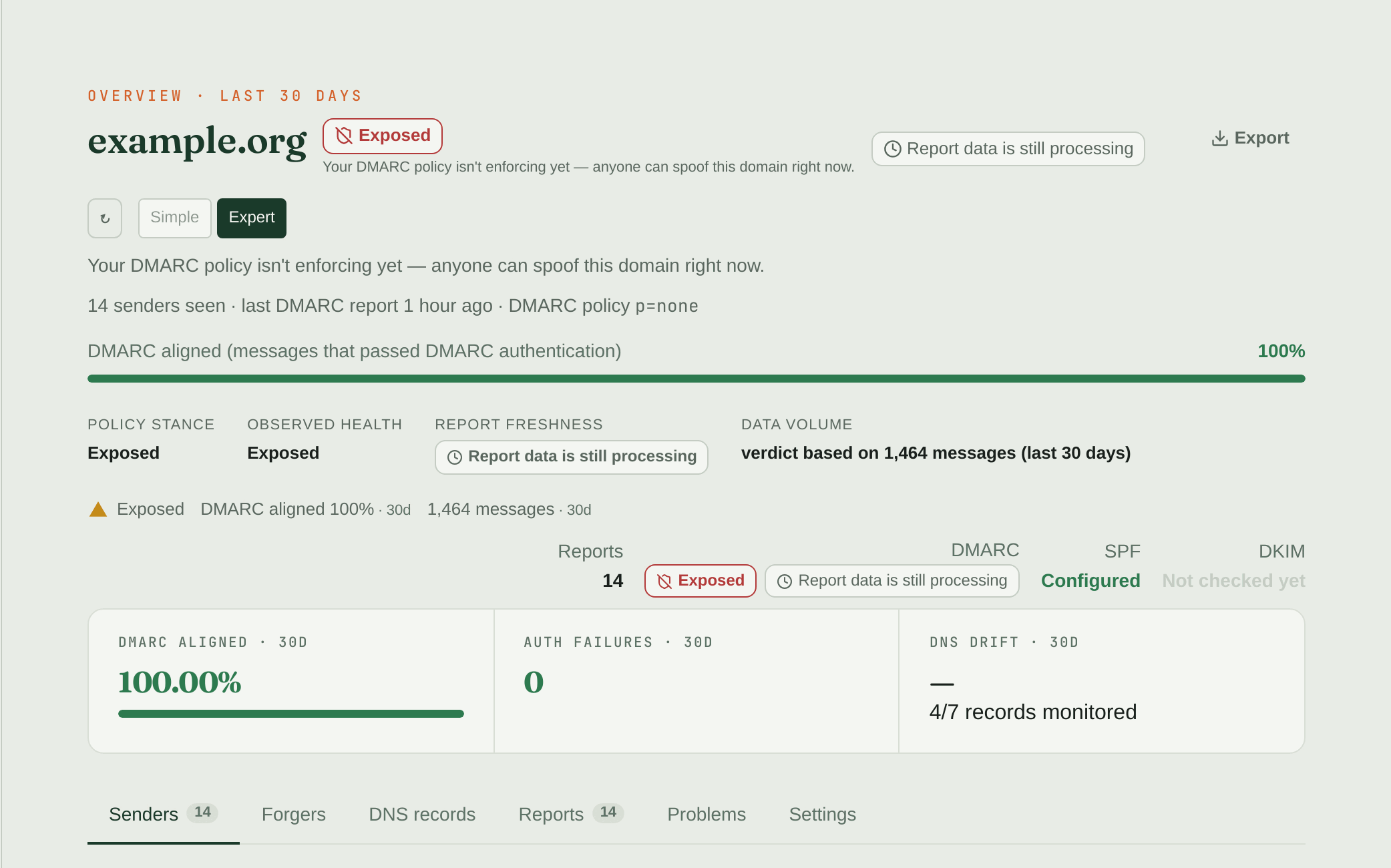
This is what p=none looks like even when everything else is right: every message passes DMARC, and the domain is still marked exposed, because nothing tells receivers to act on a forgery yet.
DMARC tells receivers what you want done with failing mail. Gmail, Outlook, and everyone else still make the final call on any individual message.
You’ll need access to wherever your domain’s DNS lives: Cloudflare, Namecheap, GoDaddy, Squarespace Domains, AWS. They all have a “DNS” or “DNS records” page.
Record 1: SPF (the allowed list).
Open your email tool’s settings (Resend, Postmark, Amazon SES, SendGrid, Google Workspace, whatever sends your customer email) and look for “SPF.” It hands you the exact string to paste. Don’t invent it yourself, and don’t copy one from a blog post, since the value is provider- and account-specific.
| Field | What to type |
|---|---|
| Type | TXT |
| Name | @ (or your root domain, e.g. example.com) |
| Value | the SPF string your email tool gave you, e.g. v=spf1 include:<value-your-provider-gives-you> ~all |
If more than one tool sends mail for you, they all go on this one line, space-separated. Never two SPF records.
Record 2: DKIM (the signature).
Your email tool generates this one too: record type, name, and value. The name might look like selector1._domainkey.example.com; the value is either a v=DKIM1; string or a hostname for a CNAME. Paste exactly what’s shown.
Record 3: DMARC (the policy instruction).
This is the one you write yourself:
| Field | What to type |
|---|---|
| Type | TXT |
| Name | _dmarc.example.com |
| Value | v=DMARC1; p=none; rua=mailto:dmarc-reports@example.com |
Exactly one DMARC record at this name. If you accidentally leave an old one in place alongside a new one, the standard says receivers throw both away. For most domains that means receivers behave as if you had no DMARC record at all. Start at p=none. Watch reports for a few weeks. Then move to quarantine, then reject, per the timeline above.
rua=mailto: is where receivers send periodic aggregate reports about mail claiming to be from your domain, usually about once a day from the big providers (the standard says daily or more often); smaller receivers vary. Point it at a mailbox you’ll actually check.
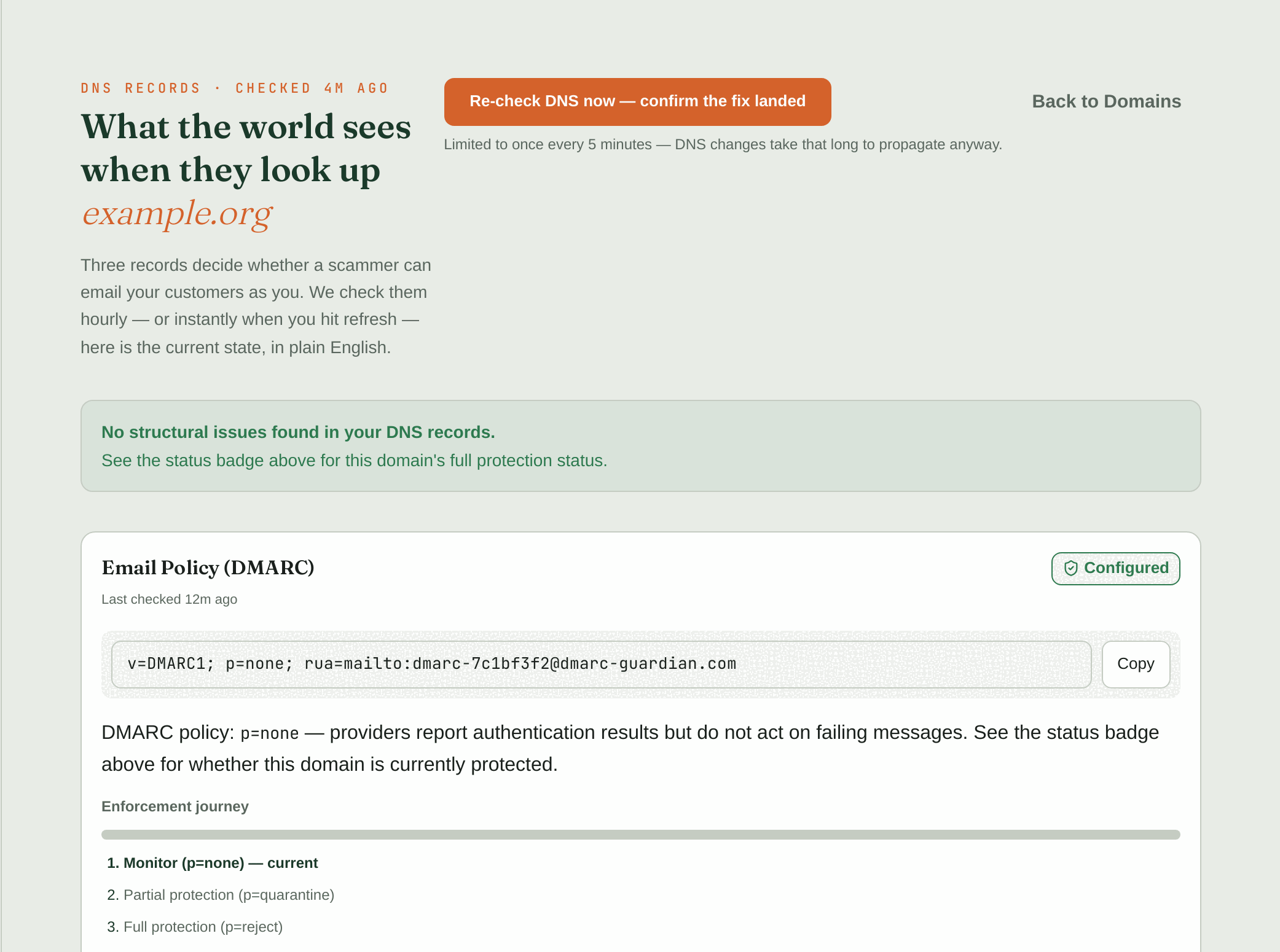
If a service reads the reports for you, it gives you its own report address to paste in, like the dmarc-…@dmarc-guardian.com one above.
Save all three records. DNS changes take anywhere from a few minutes to an hour to spread. Go make coffee.
How to confirm it actually worked
Don’t guess. Two minutes of checking: send yourself a test email (a password reset, a test invoice, anything your app sends) to a Gmail address you control. Open it, click the three dots (⋮), choose “Show original.” Look for the Authentication-Results line. You want:
spf=pass
dkim=pass
dmarc=pass
If dmarc=pass shows with at least one aligned SPF or DKIM result, your real email is authenticating correctly. That doesn’t prove the message lands in the inbox, but it rules out the most common authentication mistake. If you see fail or neutral on the path you rely on, your email tool’s setup page usually names the missing or wrong DNS record. Fix it and re-test.
What if you’re not sure what sends email as you
This is the part that trips up founders. More than one thing is usually sending email from your domain:
- Your app (password resets, receipts), usually Resend, Postmark, Amazon SES, or SendGrid
- Your inbox (
you@example.com), usually Google Workspace or Microsoft 365 - A marketing tool, a helpdesk, or a plugin someone connected once and forgot about
Every one of them needs its own SPF and/or DKIM authorization. Authorize your app but forget Google Workspace, and once DMARC starts enforcing, your own replies can start failing too, with no error and no bounce, just silence.
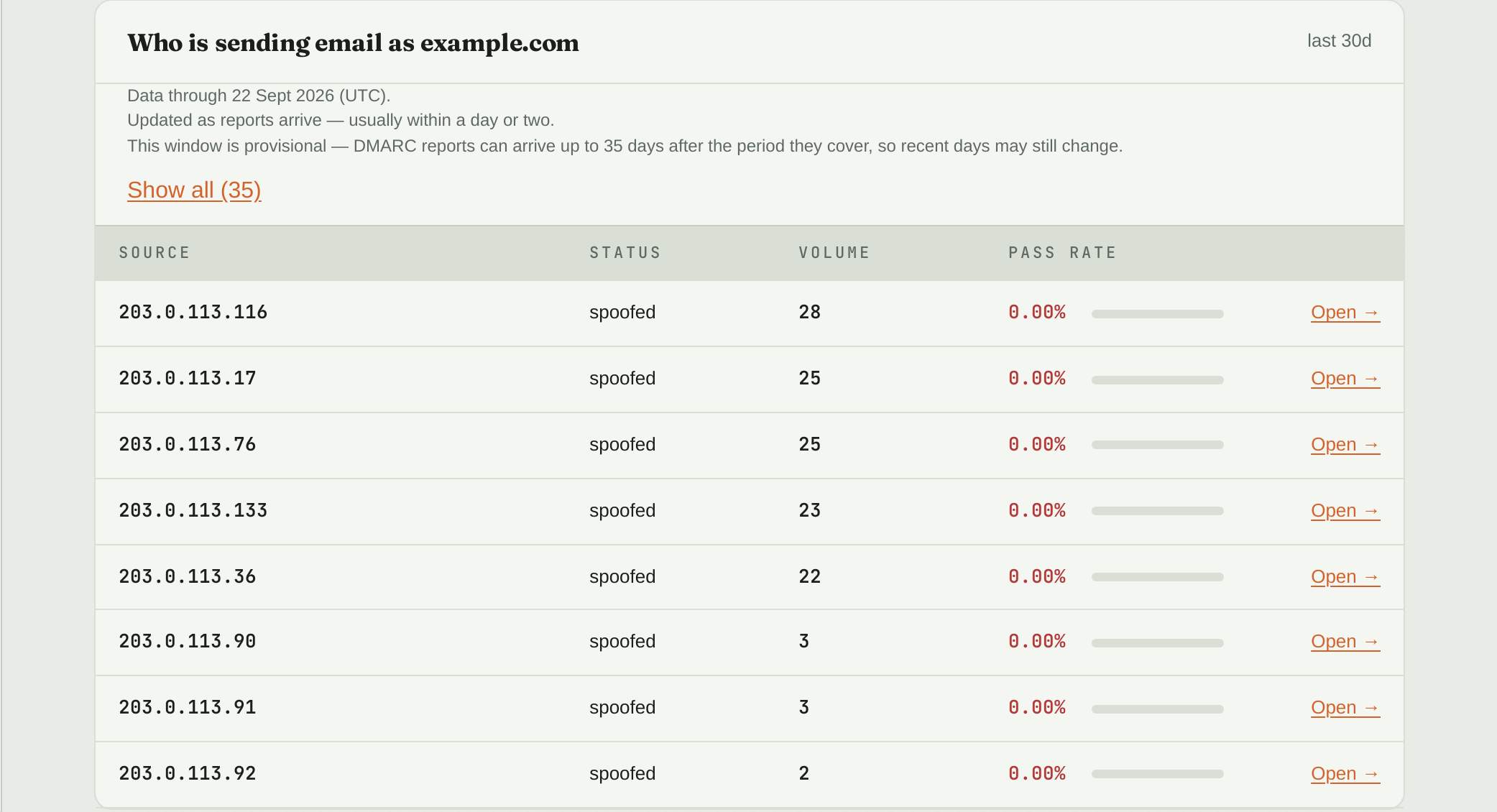
This is what a fake-invoice campaign looks like once reports arrive: servers you’ve never used, sending as your domain, with a 0% pass rate.
The DIY path: once DMARC is live, aggregate reports name every sender using your domain, along with its SPF/DKIM/alignment results. DMARC Guardian reads those reports for you and flags a failing or unknown sender on your dashboard once a report arrives, before it turns into another fake invoice, but even reading them by hand works if you check them before moving past p=none, and again after connecting anything new. If a subdomain (a staging environment, an old marketing microsite) has its own DMARC record you forgot about, it can carry a weaker policy than your root domain even after your root is locked down; this post covers exactly that gap.
The habit that keeps this fixed
Treating this as a one-time setup is the mistake founders make. The moment you connect a new tool and forget to add it to your SPF record, your own email can start failing silently, and nothing stops a new spoofing attempt from showing up next month unless something is watching the reports.
Two habits close that gap: authorize every new sending tool the same day you connect it, and keep checking aggregate reports after every DNS or provider change, not just once at setup. A mailbox and a spreadsheet is a workable DIY system for a while, until reading every report cycle by hand stops being novel and starts getting skipped.
Setting up email authentication isn’t in any “launch your SaaS” tutorial. You built a product, got customers, connected an email tool someone recommended, and nobody said anyone can forge your domain unless you publish the right records. The fix is three DNS records and a 10-minute heads-up email to your customers. You don’t need to get it perfect on the first try; p=none exists precisely so you can watch before you enforce.
Send the customer warning now. Add the records. Test with a Gmail message. Then find out who else might be sending as you before the next fake invoice does.