You’re the one person at a 15-200 person company who touches DNS. Someone told you to “set up DMARC.” This is the order I’d do it in, condensed to what you need to execute, not a full tutorial. If you want the walkthrough for any single step, this page links out to it.
Two posts already cover the mechanics in depth: the full setup in SPF + DKIM + DMARC, the bootstrap for startups, and the staged rollout in Moving DMARC from p=none to p=reject safely. Use this page as the checklist you pin in a wiki, and those two for the “how does this actually work” detail.
Step 1: Inventory every sender
You can’t scan DNS to see what’s sending as your domain. DKIM selectors are arbitrary strings the sending service picks, and there’s no DNS mechanism to list “every selector that exists” the way you can list files in a directory. You can only query a selector once you already know its name.
Two sources actually work:
- DKIM-Signature headers on real mail. Open a message from each sender (View Source / Show Original), find the
DKIM-Signature:header, and read itss=value. That’s the selector. - The
selectorfield in aggregate reports, once DMARC is live. RFC 9990 §3.1.1.12 makes this a required field on every DKIM auth-result row, so you’ll see every selector actually in use without having to guess.
Until reports start arriving, ask the team directly what sends email as @example.com: primary mail (Google Workspace, Microsoft 365, your own MTA), marketing tools (Mailchimp, SendGrid, HubSpot, Brevo, Postmark), transactional senders (password resets, invoices, order confirmations), CRM/sales tools, internal alerting (PagerDuty, CI/CD), and whatever vendor you decommissioned last year but never removed from DNS. Write it down before Step 2.
Step 2: Fix SPF
Full walkthrough in the bootstrap post above. The parts most teams get wrong:
- One TXT record on the root domain. Not a CNAME, not multiple TXT records.
- The 10-lookup limit counts
include,a,mx,ptr,exists, andredirect(RFC 7208 §4.6.4), including nested lookups inside aninclude:.ptris rare in practice but still counts;existsgets missed in most checklists. - Start at
~all(softfail), move to-all(hardfail) only after two clean weeks of aggregate reports. - A sender’s bounce address (
MAIL FROM) on its own subdomain gets its own SPF record and comes out of the root’s lookup budget. SPF evaluates the “MAIL FROM” identity, the envelope sender, so if a sender’sMAIL FROMmoves tobounce.example.com, that sender’sinclude:drops off the root record entirely. That’s a real fix for lookup-limit pressure. Publishing an unrelated second SPF record nobody’s mail actually uses is what doesn’t help. - If you’re still over budget after removing dead entries and moving what you can to subdomains, SPF flattening (resolving
include:chains to static IP ranges) is the remaining option. A hosted flattening service does this automatically and keeps the flattened record in sync when a provider’s IPs change, so you’re not re-flattening by hand every time a vendor rotates infrastructure.
Step 3: Set up DKIM for every sender
Full walkthrough in the bootstrap post above. For each sender from Step 1: generate or accept the key pair, publish it at selector._domainkey.example.com, turn on signing, send a test message and confirm the signature validates. If a sender signs with its own domain (d=mail.vendor-example.net) instead of yours, that signature won’t align with your From: domain in relaxed or strict mode. Configure the sender to sign with d=example.com or a subdomain of it. Relaxed mode only forgives subdomains of your domain, such as d=mail.example.com; strict (adkim=s) needs an exact match.
Step 4: Publish one DMARC record at p=none
_dmarc.example.com. IN TXT "v=DMARC1; p=none; rua=mailto:dmarc@example.com"Exactly one record. If two DMARC TXT records exist on the same name, receivers discard both at that name and carry on up the tree. For most domains that leaves no usable policy, so DMARC isn’t applied to your mail at all. Check dig TXT _dmarc.example.com and remove anything already there before adding yours.
rua is where aggregate reports land: periodic XML summaries from receivers that process your mail, typically 10 KB to 2 MB each. A dedicated mailbox you check by hand works fine for a small domain. If reports go quiet for 48 hours after you’d normally get them, check the DNS record, the mailbox, and the receiver’s own reporting behavior before assuming your mail is clean. Silence isn’t evidence of anything on its own.
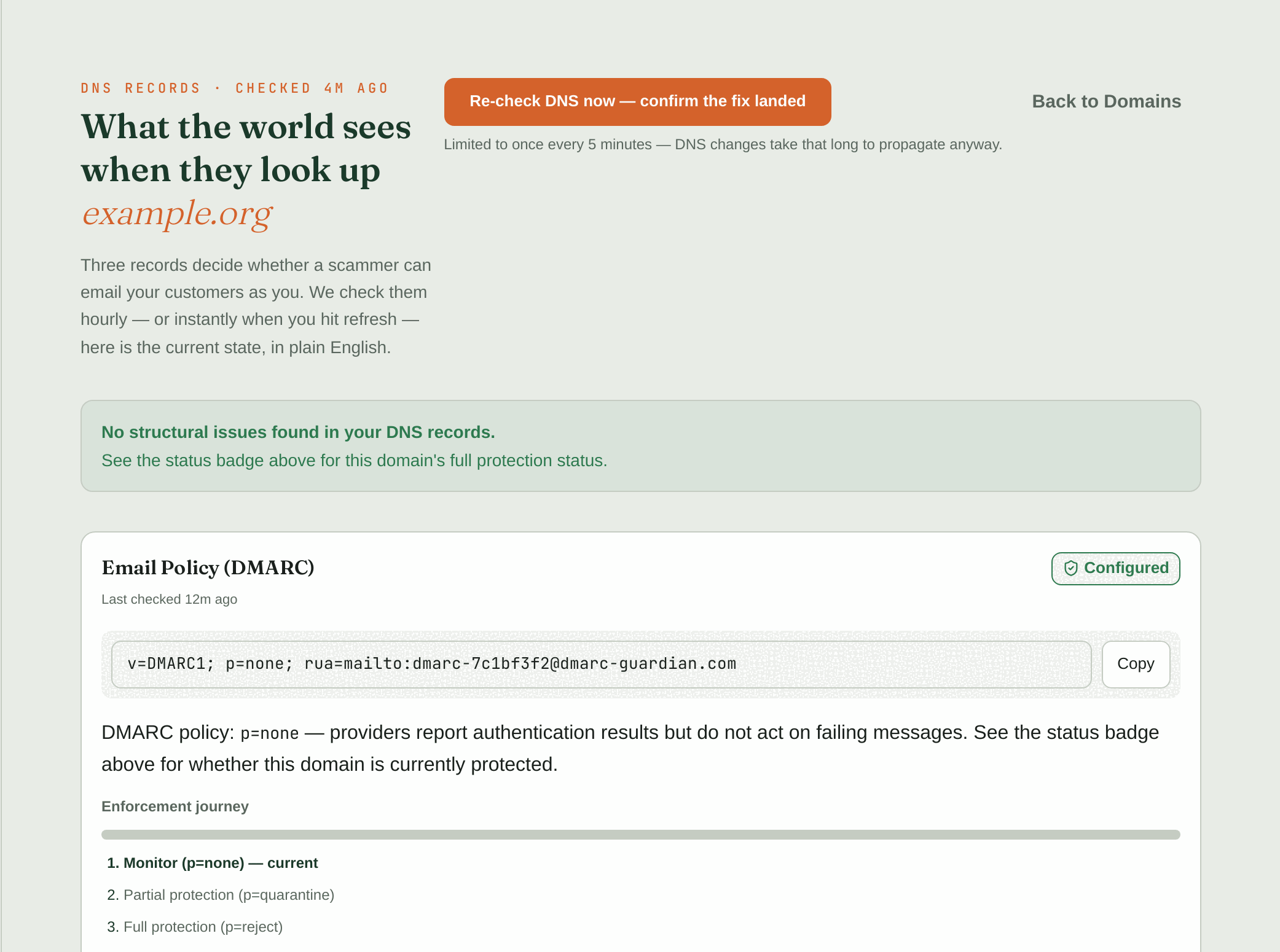
The record you’re publishing at this step, as the monitored domain sees it: p=none, one rua address, and the enforcement steps still ahead.
Step 5: Monitor for 2-4 weeks before touching policy
Full detail on what “clean” looks like is in the p=none to p=reject post linked above. The short version: every real sender needs at least one aligned pass (aligned DKIM is the durable one, since forwarding breaks SPF but aligned DKIM usually survives it), no unknown senders failing, and the same result across multiple report cycles, not just one good day. Two weeks if volume is high and reports are already clean, four if volume is low or you’re still fixing senders.
Step 6 & 7: p=quarantine, then p=reject
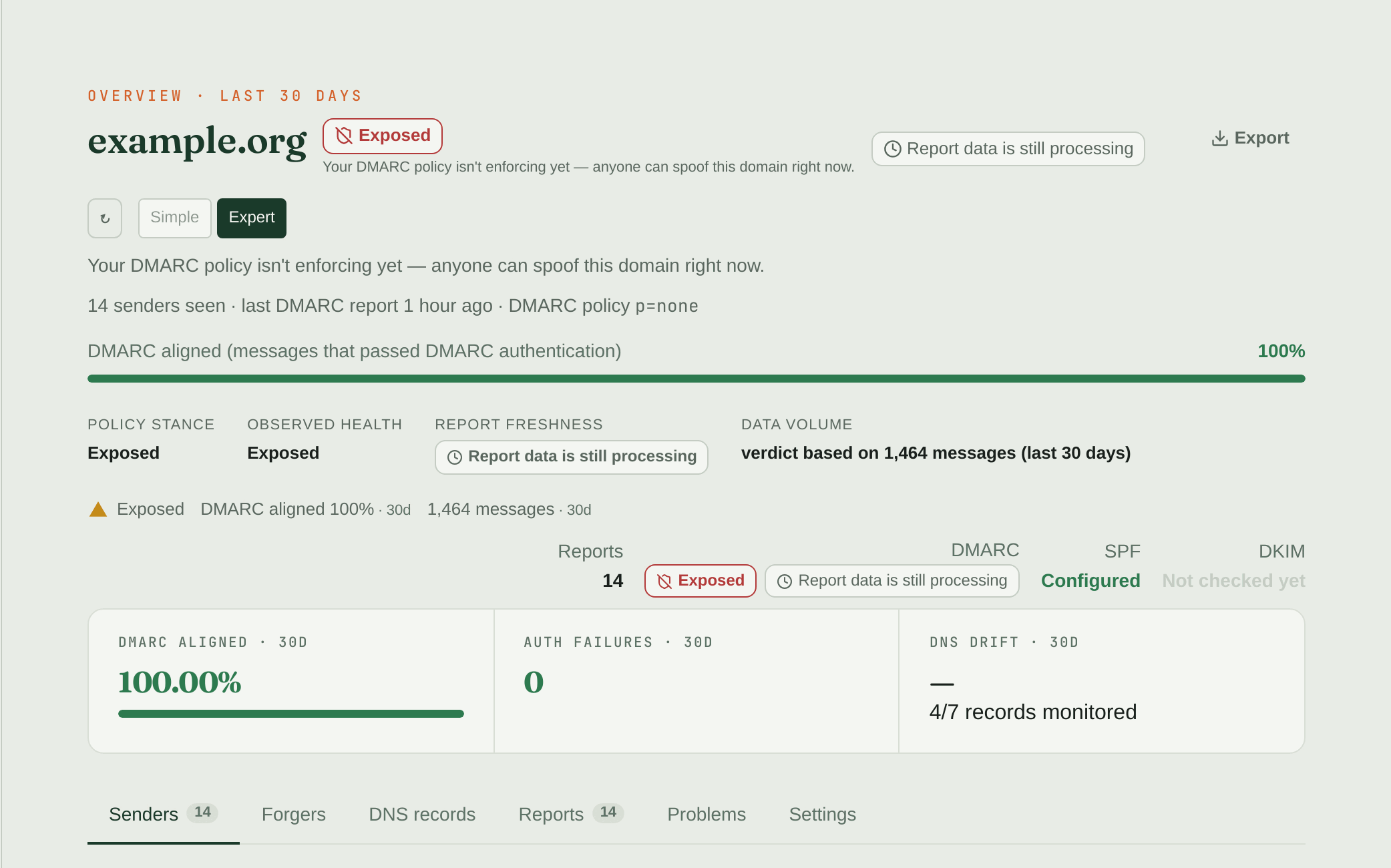
Clean reports don’t mean you’re protected. A domain at p=none with 100% of its mail passing DMARC is still exposed, and that’s the signal to move on to the table below.
| Move | When | Watch for |
|---|---|---|
p=none → p=quarantine | Reports stable, all senders pass | Typically 72 hours or more, longer if volume is low. Quarantine asks receivers to treat failures as suspicious, not guaranteed spam-folder placement; if a legit sender was on the edge, someone will notice fast. |
p=quarantine → p=reject | Quarantine stable for at least a week (longer if volume is low), no complaints | Reject changes what receivers do with failing mail, not what you see in reports, so keep watching. |
If people send everyday mail from this domain and post to mailing lists, RFC 9989 §7.4 advises against p=reject (stay at p=quarantine) and suggests at least a month at each step. Domains that only send app or transactional mail can go to p=reject.
Update the single existing record’s p= value each time; don’t add a second record. If something breaks, drop back to p=none, fix the sender, wait a few days, try again. RFC 9989 §4.7 also defines t=y (testing mode), which asks receivers to apply your policy one level down (p=reject; t=y → quarantine). Receivers that haven’t adopted RFC 9989 ignore t, so treat it as a safety net, not a guarantee. See the p=none-to-reject post for when it’s worth using over a plain manual step.
Step 8: Subdomain policy, check before you assume you need it
With p=reject and no sp= or np= tag, RFC 9989 §4.7 already applies reject to every subdomain, existing or not. That’s the default, not a gap. Adding sp=reject on top of p=reject is redundant, not protective.
sp= and np= only matter when you want a subdomain policy that differs from the root:
sp=sets the policy for existing subdomains.np=sets the policy for non-existent subdomains. Ifnp=is absent, non-existent subdomains fall back tosp=(if present) or otherwise top=.
So sp=reject with no np= already covers non-existent subdomains too; you’re not exposed there. The case that actually needs a decision is the reverse: root at reject but a specific subdomain (say, a marketing microsite) that still needs p=none while you onboard it. Full walkthrough of the actual exposure this creates and how to close it: Your root domain is p=reject. Your subdomains can still betray you.
Step 9: Rotate DKIM keys on a schedule
Full guide: DKIM key rotation. The short version: new selector, new key, publish alongside the old one, cut signing over, confirm real mail is passing with the new selector in aggregate reports, then retire the old selector once reports show nothing still using it. Put it on a 6-month calendar reminder, since DKIM keys don’t expire on their own, which is exactly why they get forgotten.
Step 10: Write the handoff doc and set the intake rule
This is the step that turns a one-time project into something that survives you leaving. Write down:
- The sender inventory from Step 1, and where to find it live (aggregate reports, once flowing)
- Which DNS records exist, what each one does, and where DNS is managed
- The DKIM rotation schedule and who owns it
- The new-tool rule: any new SaaS tool that will send email as your domain gets SPF and DKIM configured before it goes live, not after someone notices a bounce. Add it to the inventory, verify it passes in aggregate reports, then let it start sending.
- Who checks DMARC reports and how often
A DNS change nobody documented is the most common way a working p=reject setup breaks six months later. The handoff doc alone won’t catch a change nobody told you about; that’s what the ongoing report review from Step 5 is for.
TL;DR: Inventory senders (headers/reports, not DNS scanning), fix SPF, DKIM everywhere, one DMARC record at p=none, monitor 2-4 weeks, p=quarantine, p=reject, check subdomain policy before adding one, rotate DKIM keys, document and set the new-tool rule.
Start your free trial and get your sender inventory sorted from day one →